
In this article, you will learn how to upload and organize audio files in the Audio Library.
The Audio Library serves as a central repository for all your company’s custom audio branding. By storing custom greetings, hold music, and voicemail drops in one place, you can quickly apply unified audio across all call routes and ensure a professional customer experience.
Uploading Custom Audio Assets
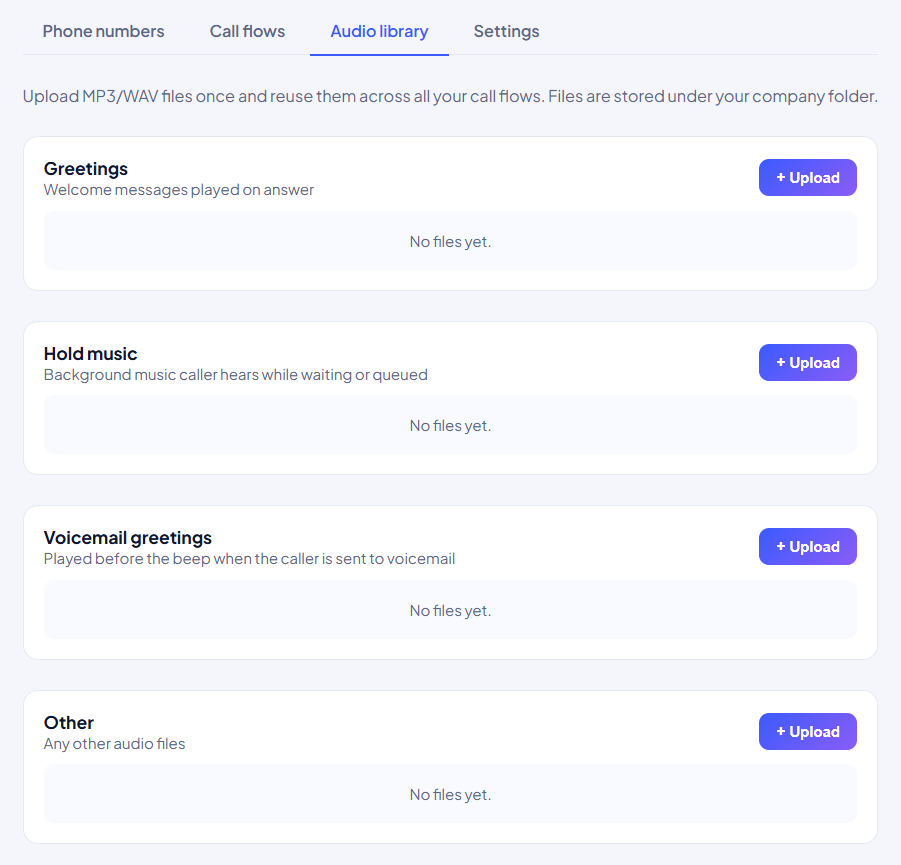
In order to store audio assets for your phone routes, you will need to access your Audio Library tab.
1. Open the Audio Library:
Click the Audio Library tab from the top menu of your VoIP settings.
2. Upload Files:
Upload your custom audio files in MP3 or WAV format.
- Upload MP3 or WAV files for standard greetings.
- Upload MP3 or WAV files for background hold music.
- Upload MP3 or WAV files for automated voicemail drops.
Note
Audio files stored in your Audio Library can be referenced and applied across multiple call routes, hold music settings, and voicemail greetings throughout the platform.
After uploading your audio branding, you can assign these files as default hold music or voicemail greetings in your settings.