
In this article, you will learn how to enable, configure, and manage automated commission tracking for your technicians and subcontractors.
Managing field compensation accurately is essential for retaining top-tier talent and protecting your operational margins. Manual commission calculations often introduce costly errors and friction into your administrative workflow. By automating this process, you can save valuable administrative time and eliminate manual mathematical errors.
This feature helps your business maintain complete financial transparency, safeguard profit margins during equipment-heavy operations, and ensure flawless financial reconciliation every single pay cycle.
Setting up Commission Tracking
In order to activate and configure commission rules companywide, you will need to access your add-on center and global settings.
1. Enable the Add-on:
Navigate to the Add-on Center on your left-hand sidebar. Under the Sales and Growth category, locate Commission Tracking and toggle the feature on.
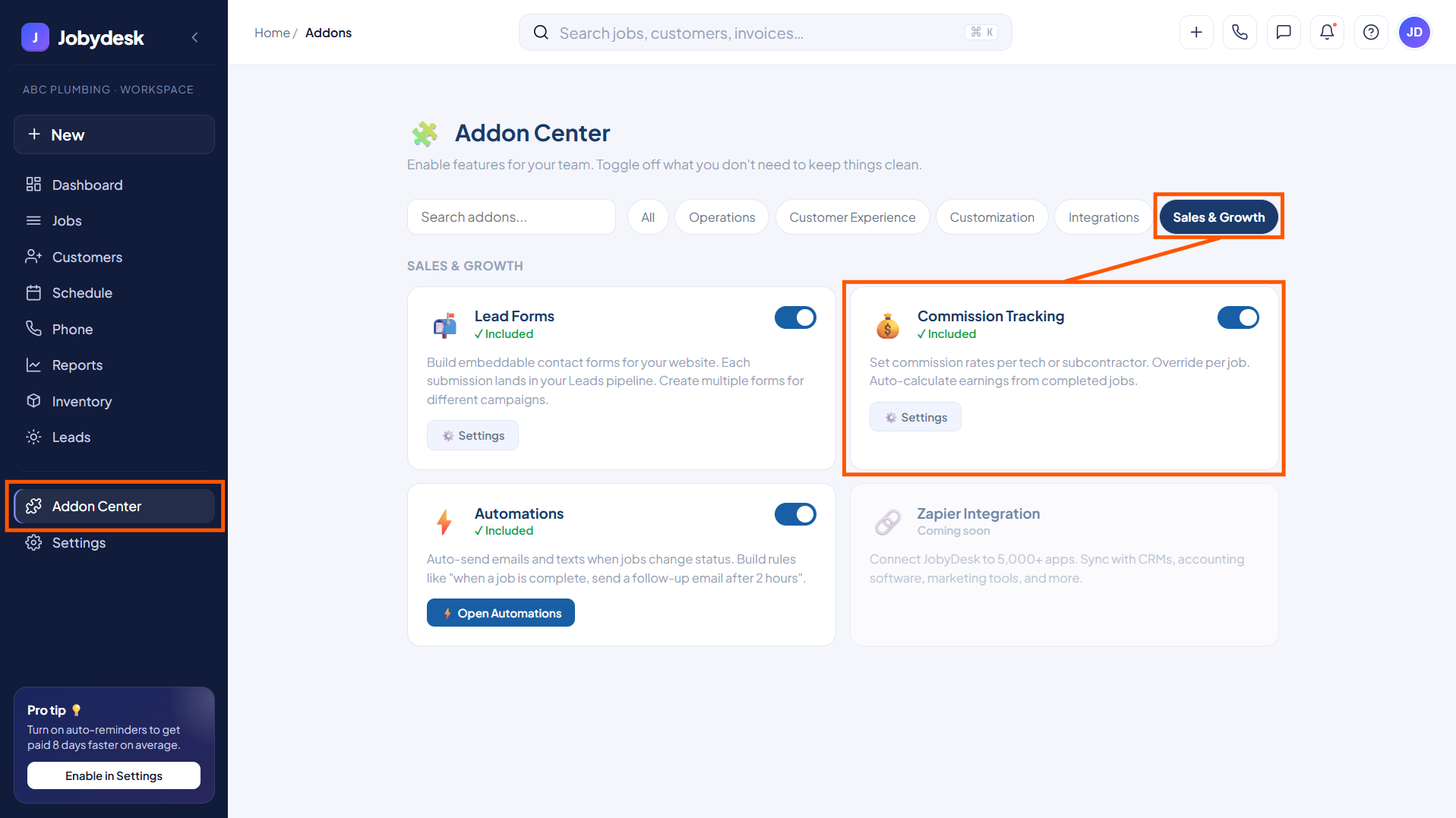
2. Configure Global Rules:
Once enabled, click Settings to open the commission tracking configuration modal. From here, you can set up global rules to control financial calculations:
- Toggle Deduct parts before commission to account for material costs prior to calculating technician payouts.
- Toggle Per job rate override to give your team the flexibility to adjust rates dynamically based on unique job circumstances.
- Dictate part supplier defaults.
- Configure security permissions, such as determining whether dispatchers or technicians have editing rights over commission fields.
Configuring Technician Compensation Profiles
In order to set individual compensation rules, you will need to access your team management settings.
1. Access Team Settings:
Navigate to Settings on your sidebar and select Team.
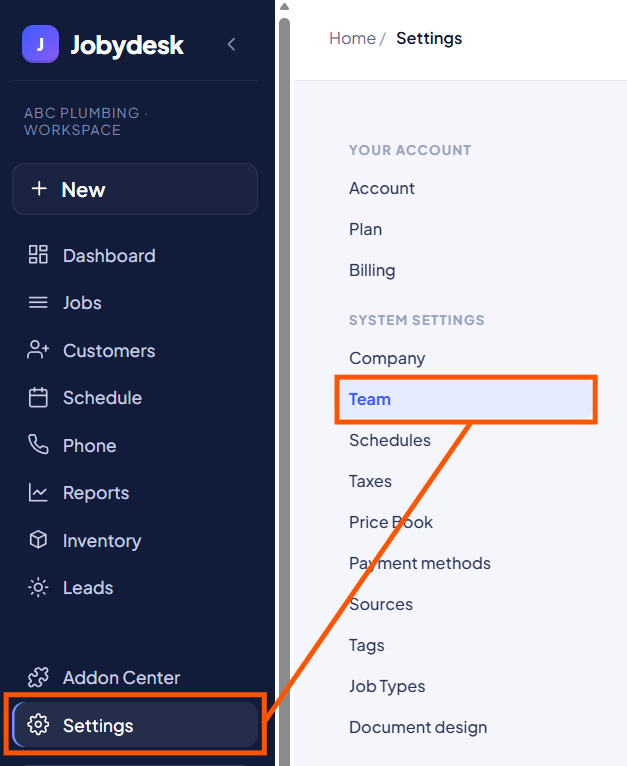
2. Edit a Roster Profile:
Review your active roster and click Edit on any technician profile.
3. Set Payout Rules:
Inside the profile modal, configure the individual’s specific compensation details:
- Input their default commission percentage to serve as the baseline calculation for all completed work.
- Toggle This tech is a subcontractor if they are an independent worker to correctly categorize them for accounting and tax tracking.
- Configure whether their specific jobs report parts against commission to match your contractual agreements.
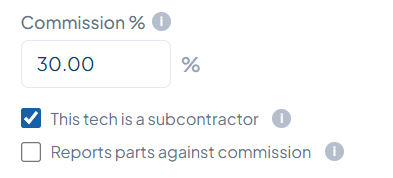
Tracking and Settling Balances
In order to review liabilities and disperse earnings, you will need to access your reporting suite.
1. Open the Commission Dashboard:
Navigate to Reports on your sidebar and select Commissions to open your financial command center.
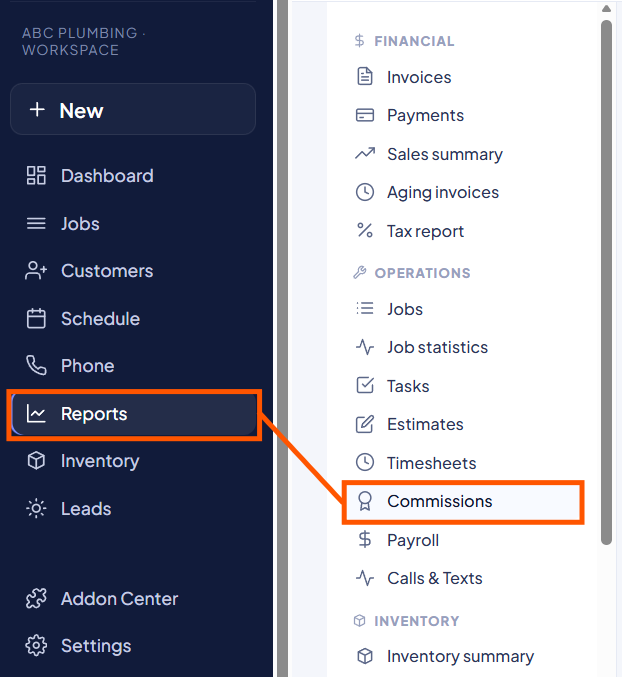
2. Review Financial Metrics:
Utilize the KPI cards to view total commission earned, amounts already paid, the exact balance owed, and recoverable negative balances. You can also review open balances and individual job breakdowns in the data table below.
3. Disperse Earnings:
When it is time to pay out your team, click Close Balance or Mark Paid.
4. Finalize the Ledger:
In the settlement modal, select your payment method, verify the date, and attach an optional memo to zero out the ledger.
Note
Enabling the “Deduct parts before commission” global rule automatically safeguards your profit margins on equipment-heavy operations by ensuring material costs are subtracted before payouts are calculated.
Once you have finalized a settlement, the ledger will instantly zero out, completing your financial reconciliation for that pay cycle.