
In this article, you will learn how to build, customize, and share lead forms to capture new inquiries seamlessly.
Lead forms are a fantastic way to capture new customer inquiries directly from your website or social media channels. By embedding these forms or sharing direct links, you remove friction for potential clients, allowing them to submit details that automatically flow into your CRM pipeline. This automation ensures your team can review requests instantly, track service needs, and convert prospects into paying customers with minimal effort.
Building a new lead form
In order to create a lead form, you will need to access your add-on center from the main dashboard.
1. Navigate to Lead Form Settings:
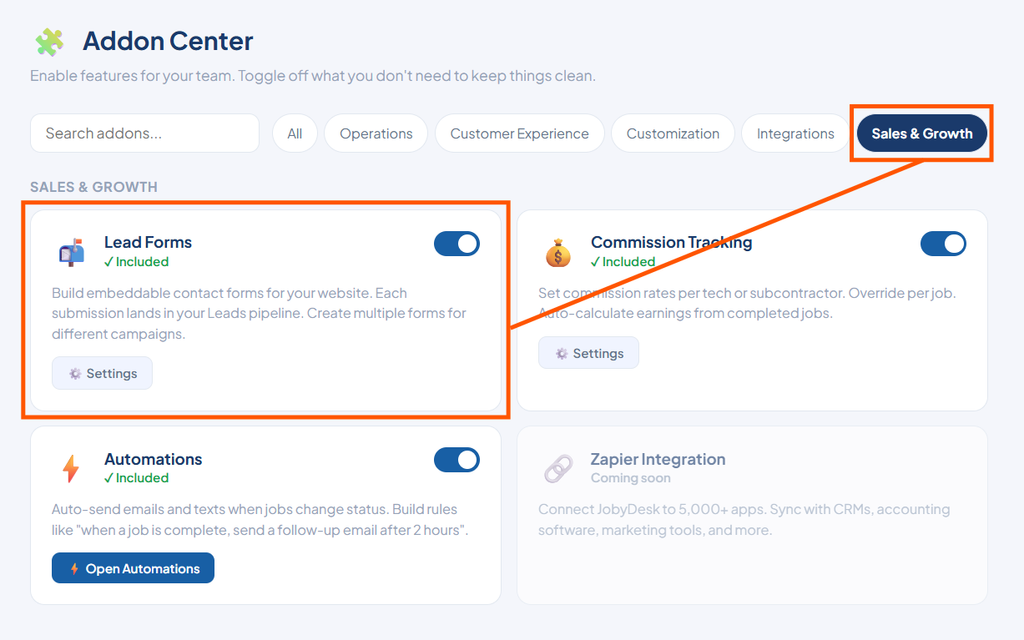
Go to your add-on center, click the Sales and growth tab, and open your lead form settings.
2. Create a Form:
Click the Create your first form button to open the builder.

3. Customize the Experience:
Modify the look and messaging of your form by updating the following fields:
- Form name
- Intro text
- Submit buttons text and color
- Custom success message or a Redirect URL to automatically send customers back to a specific page on your website after submission.
4. Configure Form Fields:
Control exactly which fields you want to collect, making them optional or required.
- Enable standard contact fields like Name, Phone, Email, and Address.
- Set up custom drop-down menus for specific questions like Service needed and How did you find us.
5. Add Consent Checkbox:
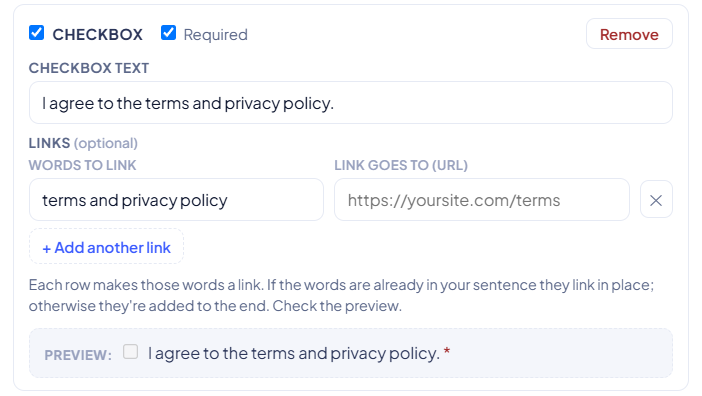
Click the Add checkbox button at the bottom to create a required consent field linked directly to your terms and privacy policy.
6. Save and Share:
Save your form. Once saved, you can click to copy the direct link to share on social channels, or copy the embed code to drop it into your business website.
Note
When a customer submits a form, The system automatically places the inquiry at the top of your pipeline under the main Leads tab, automatically tagging the requested service and lead source based on their selections.
Once the inquiry is captured, you can click into the lead profile to review the details and click the Convert to job button to seamlessly turn the lead into a paying customer.