
In this article, you will learn how field technicians can clock in for shifts and view their personal time sheet history using the mobile application.
Providing mobile time tracking tools empowers technicians in the field to manage their working hours transparently while providing management with live labor data.
Using the Mobile Time Clock
In order to log shifts and track working hours, technicians will need to use the JobyDesk mobile app.
1. Start Shift:
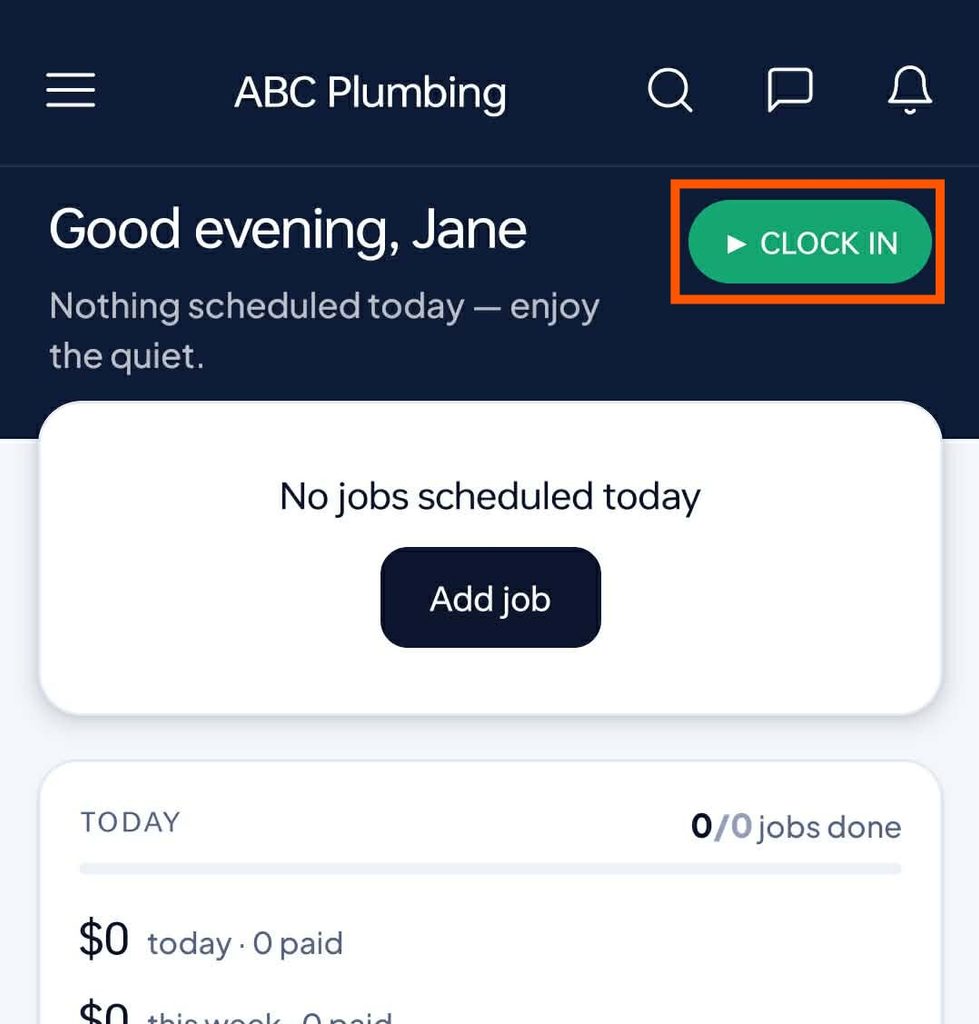
Open the JobyDesk mobile app and locate the green Clock In button at the top right of the home dashboard.
2. Monitor Active Time:
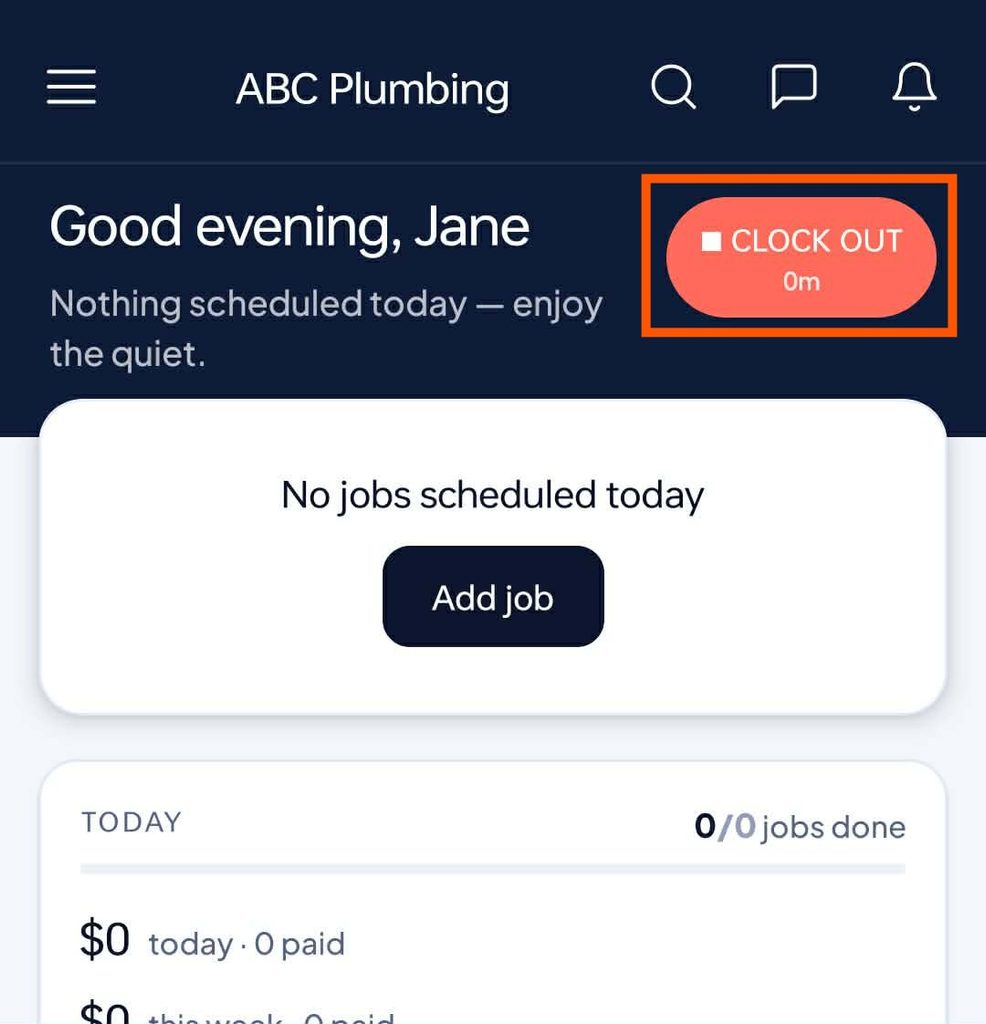
Tap the button once to begin tracking. The button will turn red and display a live timer showing active shift hours as you navigate daily jobs.
3. Review Personal Shifts:
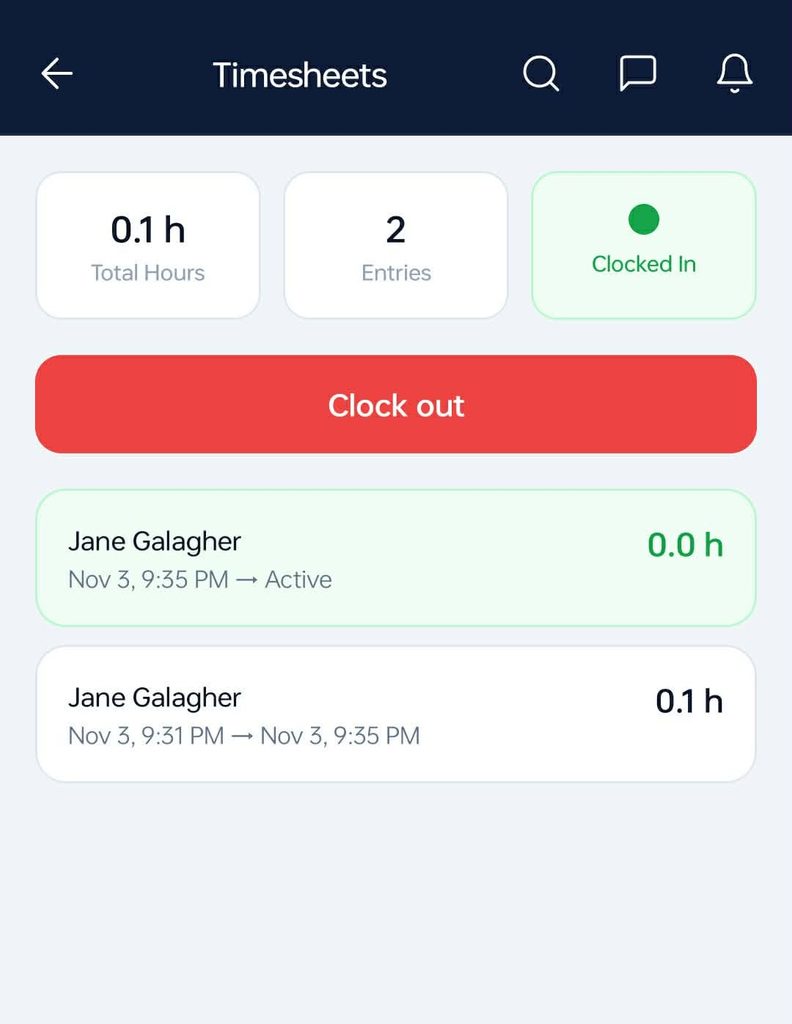
Tap the sidebar menu and select Time Sheets.
- Review personal punch history.
- View total hours worked.
- Check logs for previous shifts.
Note
The red active timer remains visible on the mobile dashboard to ensure technicians are aware they are actively clocked in while performing daily tasks.
Once a technician records their shift hours via the mobile app, the data becomes instantly available in management reports.