
In this article, you will learn how to access and analyze the Business Report Suite to gain real-time visibility into your business operations and make data-driven decisions.
The Business Report Suite delivers essential operational and financial data, allowing field service leaders to monitor customer lead conversions, track marketing channel return on investment (ROI), oversee team activity, analyze profit margins on offered services, and manage online customer feedback effectively.
Navigating to Business Reports
In order to view your performance data, you will need to access your Reports section.
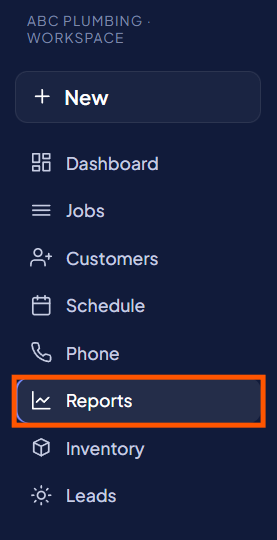
1. Access Reports:
Click Reports on the left sidebar.
2. Locate Business Reports:
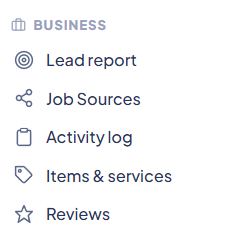
Scroll down to the Business section.
3. Review Available Reports:
Select the specific business report you wish to evaluate:
- Lead Report: Monitor how potential customers move through pipeline stages and convert into paying jobs. Filter by specific sources (such as Google or Website) and review conversion metrics using KPI cards, lead funnel stages, and detailed data tables.
- Job Sources Report: Measure marketing ROI across channels like Facebook, Google, and Repeat Customers. Review KPI cards for total jobs and overall revenue, analyze visual bar charts, and examine exact job counts and revenue generated per channel in the data table.
- Activity Log: Track team actions across the entire workspace for operational transparency and security. View total events and user activity using KPI cards and line graphs, or apply quick filters to the data table to review exact timestamps, users, actions taken, record IDs, and IP addresses.
- Items and Services Report: Check financial health and profit margins across your offering catalog. Compare list prices across business segments and review table details, including item types, categories, list prices, underlying costs, and true profit margin percentages.
- Reviews Report: Manage online reputation and evaluate customer feedback request performance. Review KPI cards tracking sent, opened, and rated requests, view destination platform clicks via the Clicks by Site chart, and monitor individual customer ratings and open dates in the main table.
Use these insights to refine your marketing budgets, update item list prices to safeguard profit margins, and optimize customer workflows across your workspace.