

Many of your customers are more comfortable in another language. Now you can text them in it, right from JobyDesk, without copying anything into a translator.
How it works
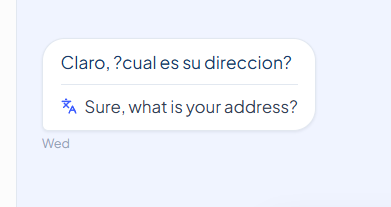
- Their texts show in English. When a customer writes in Spanish or another language, the English translation appears inside their message.
- You reply in English. Type and press Send as usual. The customer gets your reply in their language. Your thread keeps what you typed, plus a “Sent in Spanish” line with exactly what they received.
- It finds the language for you. Every conversation starts on Auto detect. Once a customer writes a few words in another language, your replies switch to it. Texting first? Choose the language yourself before you send.
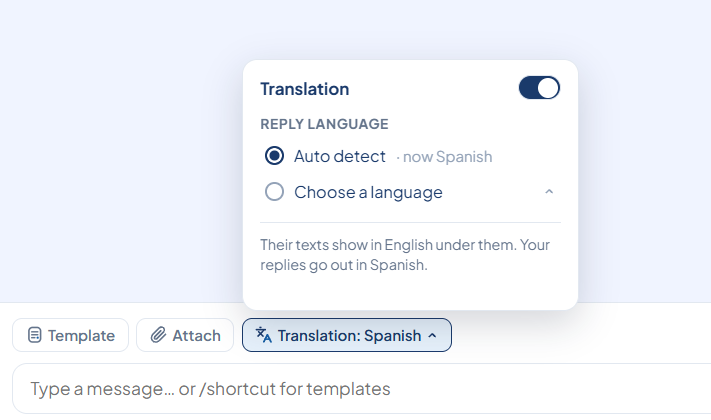
On the web app
- Go to Messages and open a conversation.
- Below the message box, click Translation.
- Use the switch to turn translation on or off for this customer, then pick Auto detect or Choose a language.
The button always shows where your next text goes. “Translation: Spanish” means your reply will be sent in Spanish.
On the phone app
- Open a conversation in Messages.
- When your replies are being translated, a blue Sends in Spanish · Change line sits just above the text box. Tap it to change the language.
- To turn translation on or off, or to pick a language before the customer writes, tap ⋮ at the top right, then Translation.
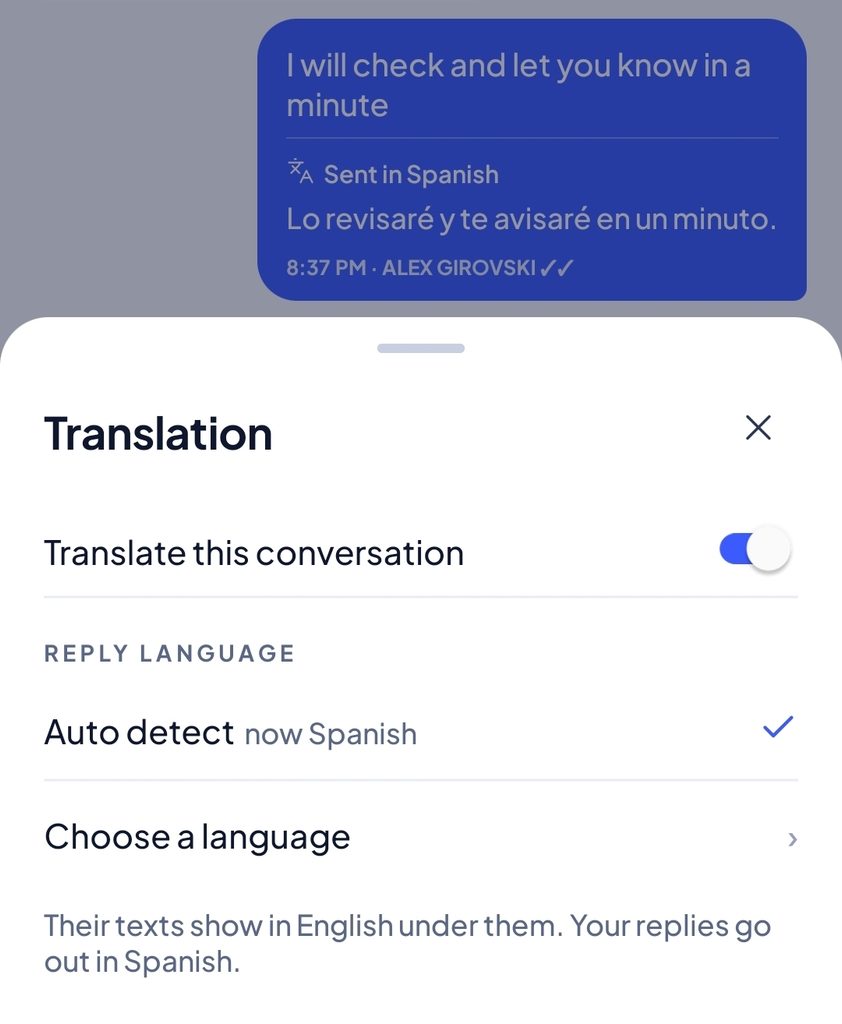
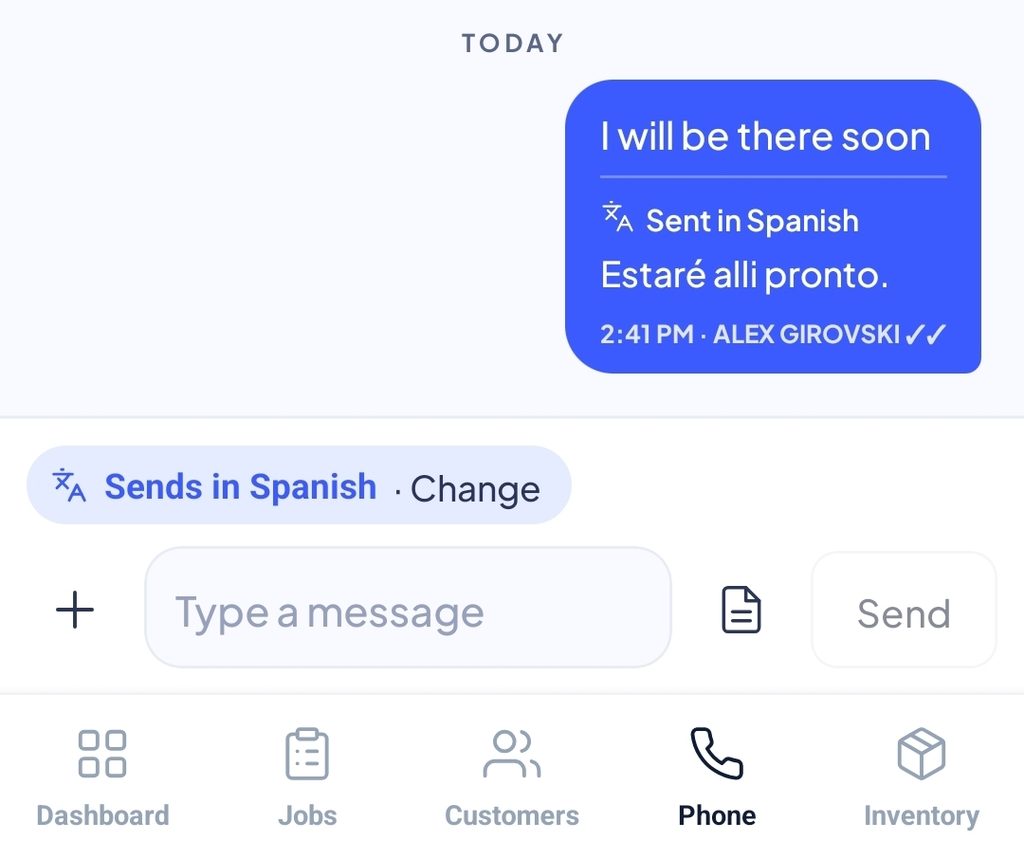
On Android, update JobyDesk to version 1.9.42 from Google Play. The iPhone app gets translation in a later update.
Good to know
- Plans: included in the Standard plan, for companies using the JobyDesk phone system.
- Cost: translating is free. Accented letters (like á or ó) make a text split into parts sooner, so a translated reply can use a little more text credit than the same reply in English.
- Nothing goes out half-done: if a translation can’t be made, nothing is sent. You choose Send in English or Try again.
- Automatic texts stay in English: reminders, On my way, invoice and estimate links, and review requests.
- Languages to choose from: Spanish, Chinese, Tagalog, Vietnamese, Arabic, French, Korean, Russian, Portuguese, Haitian Creole, Polish and Ukrainian. Auto detect also picks up other languages.
- Turn it off for the whole company: owners and admins can go to Phone system → Settings → Translate texts.